



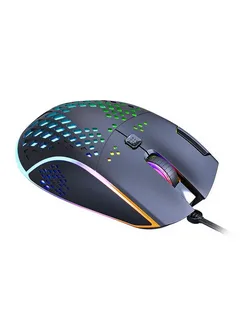
RGB lighting has become a staple for gamers and tech enthusiasts, offering a way to personalize your setup. If you want to make your mouse truly unique, learning how to customize your rgb mouse lighting effects can elevate both your aesthetic and gaming experience. This guide will walk you through the steps to achieve dynamic and personalized lighting.
Understanding RGB Mouse Lighting
Before diving into customization, it’s important to understand how RGB lighting works. Most modern gaming mice come with software that allows you to control individual LEDs, colors, and patterns. Popular lighting effects include:
- Static Color: A single, solid color across the mouse.
- Breathing: A gradual fade in and out of colors.
- Wave/Flow: Colors move dynamically across the mouse surface.
- Reactive: Lighting responds to clicks or movements.
By knowing the available modes, you can plan your unique lighting setup.
Installing the Manufacturer Software
To begin customizing your RGB mouse, install the official software provided by the manufacturer. Brands like Logitech, Razer, Corsair, and SteelSeries offer dedicated applications. This software is essential for controlling brightness, speed, and color schemes.
Steps:
- Download the software from the manufacturer’s website.
- Connect your RGB mouse via USB or wireless receiver.
- Launch the software and ensure your mouse is recognized.
With the software installed, you’re ready to explore how to customize your RGB mouse lighting effects.
Choosing the Right Lighting Effect
Once in the software, you can experiment with various lighting effects. Here are some tips:
- Match colors to your gaming setup or room theme.
- Use slower transitions for a subtle look or faster ones for a vibrant effect.
- Combine multiple effects for a layered appearance.
Most software allows saving multiple profiles, which is perfect if you want different settings for work, gaming, or streaming.
Advanced Customization Tips
For users seeking deeper personalization, many programs let you control lighting on a per-zone basis. You can:
- Assign colors to individual mouse buttons.
- Sync lighting with keyboard or PC case RGB.
- Create macros that trigger lighting changes.
These advanced techniques allow full control over how to customize your RGB mouse lighting effects, giving your setup a one-of-a-kind appearance.
Conclusion
Customizing your RGB mouse isn’t just about aesthetics; it enhances your overall computing experience. By following the steps outlined above and experimenting with effects, you can achieve a setup that reflects your style and improves visibility during intense gaming sessions. With the right approach, learning how to customize your RGB mouse lighting effects can be both fun and rewarding.
